Watch and schedule updates
Keep reviewed sensors and routines current with enabled and refresh. Assistants declare their own inputs, post channel, schedules, gates and wakes in bf.yaml. Timing and health says when each program is due and how failures retry. Start inside your brain.
| You want to… | Use |
|---|---|
| Run due programs while a terminal is open | bf watch |
| Observe another collector | bf status --watch; it executes nothing. |
| Run unattended on a running machine | bf watch --json as a user service you install. |
BF installs no background service. First run your programs once by hand.
Check before scheduling
bf update --dry-run    # list due work; run nothing
bf update              # run due sensors, then routines, then assistants
bf status --check
The dry run lists due programs with their windows. Under manual, it names the enabled programs that updates skip: sensors and routines with refresh: 0, and assistants without schedules or inputs, which only bf run starts. A healthy bf status --check exits 0.
- Set
enabled: falseto stop a program, orrefresh: 0to keep it manual, as sensors and routines are by default. - Keep CI for offline
bf validateandbf eval. For a shared source, designate one collecting laptop.
Watch collection
bf watch
Watch runs due sensors and routines immediately, then checks again 60 seconds after each completed cycle; --interval SECONDS changes that. It can contact providers. Closing watch stops all owned process groups.
Beside collection, watch runs the assistant dispatcher: persistent streams, due batch reads, named schedules, queued jobs and deliveries. The dashboard marks assistants with @. Assistant timing and recovery gives the dispatcher's rules.
- Assistant work that cannot start, such as for a missing prompt or a full queue, never stops watch. Neither does a failing read, a disconnected stream or a failed delivery. The message line says why, and watch retries work that waits.
- Only a stopped stream worker ends watch.
- Restart watch after adding or renaming an assistant, or changing channel commands, stream subscriptions or the
watchpreferences.
The dashboard shows each program's state, last success, next due time, returned items and record changes. Use bf status --check for full health.
nevermeans no success on this machine, such as a sensor that only backfilled older windows.failedmeans the last attempt failed.- Items counts the records the last committed collection returned, even a backfill, not the stored total.
- Manual and disabled programs stay visible without running.
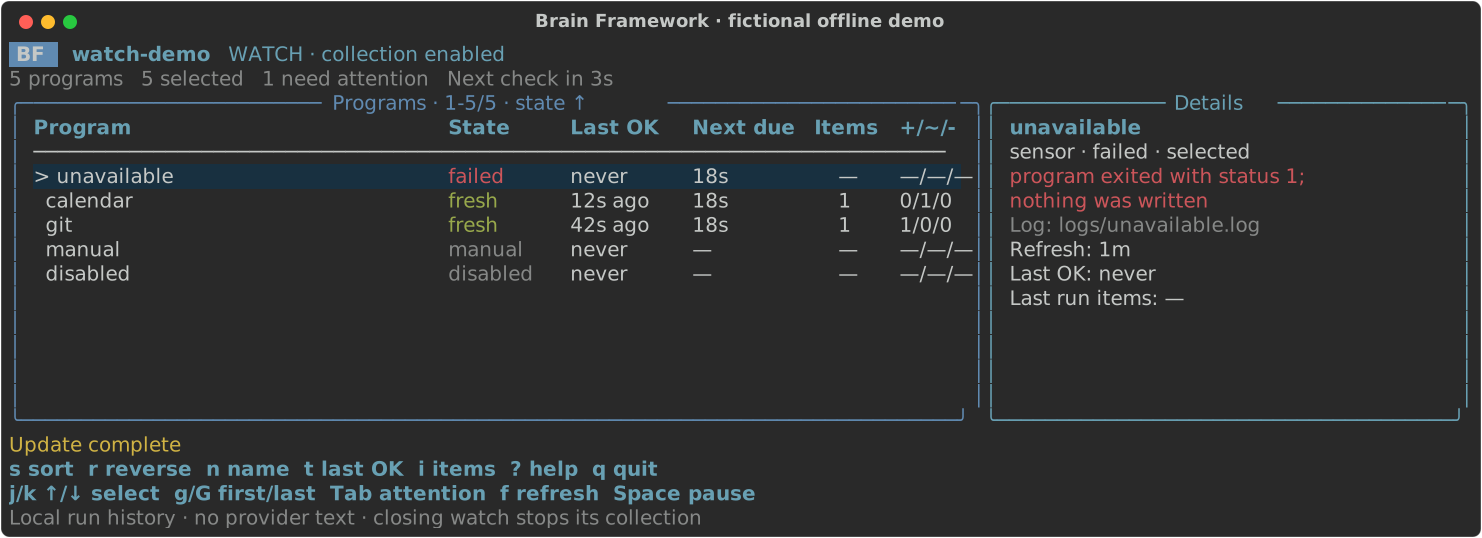
This is the fictional offline watch demo, sorted by state: unavailable failed, calendar updated its record, git added one, and the manual and disabled sensors stay idle.
| Key | Effect |
|---|---|
j / k, arrows |
Select a program and show its details, including its log and latest action. |
| Tab | Show only programs needing attention: failed, never collected or due. |
f (or u) |
Reload bf.yaml and check due work now; queues one check during an update. |
| Space | Pause or resume future checks; an active update finishes. |
? |
Toggle the guide: every key, sort field and count explained. |
q |
Cancel any active update and quit. Ctrl-C or closing the terminal exits 130. |
Press f after adding a reviewed sensor or routine to bf.yaml: its row appears and it runs if due. A new assistant's row appears too, but it runs only after you restart watch. Refresh respects selectors, pause, refresh and failure backoff.
When bf.yaml becomes invalid, or stops declaring a program you selected, the message line shows BF's diagnostic, such as unknown sensor git; check names in bf.yaml. Nothing runs until you fix it.
Sort the dashboard
s cycles the sort field, n, t and i sort by name, last success and items, and r reverses. The panel title shows the field and direction, such as Programs · 1-5/5 · items ↓.
- Unknown values sort last, and ties stay alphabetical.
- The selected program stays selected as rows move.
- Sorting lasts for the session and changes nothing in
bf.yaml. - Sorting also works in
bf status --watch.
Terminal and observation
Observe another collector without running anything, or run due work and stream its state as JSON for a service:
bf status --watch   # observe only; never runs programs
bf watch --json     # run due work and stream JSON Lines
The interactive dashboards, bf watch and bf status --watch, need a color terminal of at least 80 columns by 24 rows; from 120 columns, details appear beside the table. Colors follow NO_COLOR, and labels stay meaningful without color.
Observation shows local history alongside a service or timer. It offers u to reread and has no pause. Without an interactive terminal, it fails and suggests bf status.
bf watch --json writes a snapshot every poll_interval with brain, running, assisting (assistant work is active), message and programs, one row per program. The Row class defines every row field.
- A row's
statusis the dashboard state:failed,never,due,fresh,manualordisabled. - Times show your local offset, and absent values are empty strings or null.
- A JSON watcher always collects, and fails while another watcher owns the brain.
- Each new reason assistant work waits appears as one
bf:line on stderr.
Watch preferences
The watch section is optional, and an empty one keeps the defaults. By default, watch checks due work every 60 seconds, rereads local history every 2 seconds and alerts on failures and recovery. For a quieter session:
bf watch --interval 300 --notify off
To keep those preferences, add a watch section to bf.yaml:
# https://fmind.github.io/brain-framework/docs/schedule/#watch-preferences
watch:
  interval: 300
  notifications: off
| Setting | Default | Accepted values |
|---|---|---|
interval |
60 | Seconds between checks for due work, 5–86400. |
poll_interval |
2 | Seconds between history reads and JSON snapshots, 0.2–60. |
notifications |
failure |
off, failure, success or all. |
notification_cooldown |
300 | Seconds between alerts, 0–86400. |
Command-line options override bf.yaml, then defaults apply. Every command loading bf.yaml validates the section, even when an option overrides it.
failurealerts on new failures and recoveries.successalerts on recoveries and on cycles that completed work, even while another program keeps failing.allalerts on all three.- Alerts never name sources or quote provider text.
- Desktop alerts need
osascripton macOS, ornotify-sendorgdbuson Linux. BF finds them through an absolutePATHentry and runs them without the variables BF removes. A delivery failure warns once, and collection continues.
Select programs
Repeat --sensor, --routine and --assistant on update or watch:
bf update --sensor git-commits --dry-run
bf watch --sensor git-commits --routine weekly-review
- With no selector, every configured program is eligible, including sensors and routines added later. Assistants added later need a restart.
- With any selector, only the named programs are.
bf update --kind KIND, repeatable, keeps only sensors, routines or assistants.- An unknown name fails before anything runs and suggests a close one.
- Selectors never force a disabled or manual program to run.
Run watch as a service
To keep collecting without an open terminal, run bf watch --json as a user service that restarts after a failure. BF installs nothing: write the file, then start it with your system's commands. In the service file:
- Set
PATH: a service does not read your shell profile. List the folders ofbfand of every provider CLI your programs call, ascommand -v bfandcommand -v ghprint them. Prefer stable folders, such as mise or asdf shims, to version-specific ones. - Copy
XDG_CONFIG_HOMEandXDG_STATE_HOMEwhen your shell sets them, so the service shares registration, run history and the assistant queue with your terminal. - Keep it current and private: edit the file by hand when
bf, the brain or a provider CLI moves. Keep it out of a shared brain's Git history, since it holds your paths.
On Linux, save a systemd user service as ~/.config/systemd/user/bf-watch.service:
# https://www.freedesktop.org/software/systemd/man/latest/systemd.service.html
[Unit]
Description=Brain Framework watch

[Service]
# %h is your home folder. List every folder holding bf and the provider CLIs your programs call.
Environment=PATH=%h/.local/bin:/usr/local/bin:/usr/bin:/bin
ExecStart=%h/.local/bin/bf watch --json --brain %h/brain
# Watch prints a JSON snapshot every poll_interval; its bf: diagnostics on stderr reach the journal.
StandardOutput=null
Restart=on-failure
RestartSec=60
# A stop request ends watch with status 130 once its programs have stopped.
SuccessExitStatus=130

[Install]
WantedBy=default.target
systemd-analyze --user verify ~/.config/systemd/user/bf-watch.service
systemctl --user daemon-reload
systemctl --user enable --now bf-watch.service
journalctl --user -u bf-watch.service -n 30 --no-pager
On macOS, save a LaunchAgent as ~/Library/LaunchAgents/bf-watch.plist. Replace /Users/me with your home folder: launchd expands neither ~ nor variables.
<?xml version="1.0" encoding="UTF-8"?>
<!DOCTYPE plist PUBLIC "-//Apple//DTD PLIST 1.0//EN" "http://www.apple.com/DTDs/PropertyList-1.0.dtd">
<plist version="1.0">
<dict>
  <key>Label</key>
  <string>bf-watch</string>
  <key>ProgramArguments</key>
  <array>
    <string>/Users/me/.local/bin/bf</string>
    <string>watch</string>
    <string>--json</string>
    <string>--brain</string>
    <string>/Users/me/brain</string>
  </array>
  <key>EnvironmentVariables</key>
  <dict>
    <key>PATH</key>
    <string>/Users/me/.local/bin:/opt/homebrew/bin:/usr/local/bin:/usr/bin:/bin</string>
  </dict>
  <key>RunAtLoad</key>
  <true/>
  <key>KeepAlive</key>
  <dict>
    <key>SuccessfulExit</key>
    <false/>
  </dict>
  <key>ThrottleInterval</key>
  <integer>60</integer>
  <key>ExitTimeOut</key>
  <integer>60</integer>
  <key>StandardOutPath</key>
  <string>/dev/null</string>
  <key>StandardErrorPath</key>
  <string>/Users/me/Library/Logs/bf-watch.log</string>
</dict>
</plist>
plutil -lint ~/Library/LaunchAgents/bf-watch.plist
launchctl bootstrap "gui/$(id -u)" ~/Library/LaunchAgents/bf-watch.plist
launchctl print "gui/$(id -u)/bf-watch"
Check the service with bf status --check, or follow it with bf status --watch. To stop and remove it, run systemctl --user disable --now bf-watch.service or launchctl bootout "gui/$(id -u)/bf-watch", then delete its file.
A plain timer also works: a systemd timer, a launchd StartCalendarInterval job or a cron line that runs bf update --brain BRAIN every few minutes. A timer never starts a channel stream.
Service behavior and host lifecycle
A systemd user service runs while your user manager does, from your first login to your last logout, unless loginctl enable-linger keeps it running. A LaunchAgent runs while you are logged in. After a failure, both start watch again a minute later; a stop request leaves watch at least a minute to roll back an interrupted record write and stop its programs. Watch catches up due work after sleep or power-off, up to 30 days. Each program's timeout bounds its run.
ChromeOS stops its Linux environment at logout, and WSL needs a running distribution. See the ChromeOS lifecycle, WSL systemd, systemd lingering and Apple launch agent guides.
Collector ownership
Use one execution owner per program: a watch, a service or a timer.
- A second interactive
bf watchon the same brain observes the first instead of collecting. It does not take over when the first exits. - Watch cannot detect timers: use
bf status --watchwhile a timer owns collection. - Updates of one brain run one at a time. A second update waits up to 10 minutes, then computes its own due list, or fails with
another update is still active. bf collectkeeps its own lock per sensor.- Stopping a systemd or launchd service or timer also stops an active update. Removing a cron line stops future runs only.
Timing and health
A program is due when it is enabled, has a nonzero refresh and has not succeeded on this machine within that many seconds.
refreshdefaults to0for sensors and routines, which keeps them manual: onlybf collectorbf runstarts them.- Assistants have no implicit schedule: declare
schedules: {review: {every: 1800}}for a 30-minute review. Their input and schedule windows are independent. - Choose a watch
interval, or a timer's, shorter than the smallest nonzerorefresh. When theintervalreaches it,bf watchwarns and names that program, in the dashboard header and guide, or as onebf:line on stderr with--json. With an hourly sensor and a 15-minute timer, a check 59 minutes after the last success skips the sensor; the next check, at 74 minutes, runs it. - A success timestamp in the future, after a clock correction, makes the program due at once.
- Long pauses catch up at most 30 days.
When a sensor or routine fails:
- The other programs continue, and
bf updateexits 1. - The failed program retries 1 minute later, then after 2, 4, 8… minutes per consecutive failure, never waiting longer than its
refresh. A success resets the delay. bf collectandbf runalways run at once. A direct assistant run leaves the schedule unchanged.
An assistant failure instead stays queued for explicit inspection and retry: uncertain model effects are never replayed automatically. Each failing assistant read, schedule, job or delivery is its own failed row and makes bf update exit 1, while the other assistants still run.
Run history is local, even when records are shared, so check health on the collecting machine. Each program has one freshness state:
| State | Meaning |
|---|---|
fresh |
Scheduled and succeeded on this machine within twice its refresh. |
overdue |
Scheduled and has succeeded, but not within twice its refresh. |
never |
Scheduled with no local success. |
manual |
refresh: 0. |
unknown |
A disabled program or historical source. |
A sensor succeeds only with a collection reaching the moment it runs: one that only backfilled older windows stays never.
bf status --check exits 1 for:
- an enabled scheduled program that is
overdue,neversucceeded, last failed or, for a source, fell silent; - an assistant with failed or uncertain jobs, or schedules that cannot start;
- a channel with an unresolved delivery that failed or is uncertain, or a stream or read error.
See messaging for the assistant and channel fields.
Silent sources
Freshness proves that a sensor succeeded, not that it found anything. After a changed filter, an expired account or a provider change, a sensor can keep succeeding with nothing new. Give a source that always brings news within a known delay a silent_after, in seconds:
# https://fmind.github.io/brain-framework/docs/sensors/
sensors:
  mail:
    command: [sensors/gmail-headers.py, "{{start}}", "{{end}}"]
    refresh: 3600
    silent_after: 172800 # new mail arrives at least every two days
bf status gives each source's changed: the newest time this brain gained a new or changed record of it, whatever the records' event times. An enabled scheduled source whose changed is older than its silent_after:
- is
"silent": trueinbf status,memoriespages and search coverage; - joins
attentionand the home page; - fails
bf status --check, while its freshness stays as it is.
Collecting a new or changed record ends the silence. A source without any record is never silent: its count already shows it. Set silent_after above the longest quiet spell the source really has, such as a weekend for a daily feed.